Video Editing Classes
Learn to edit videos like a pro, from YouTube content to short films and storytelling.
About This Class
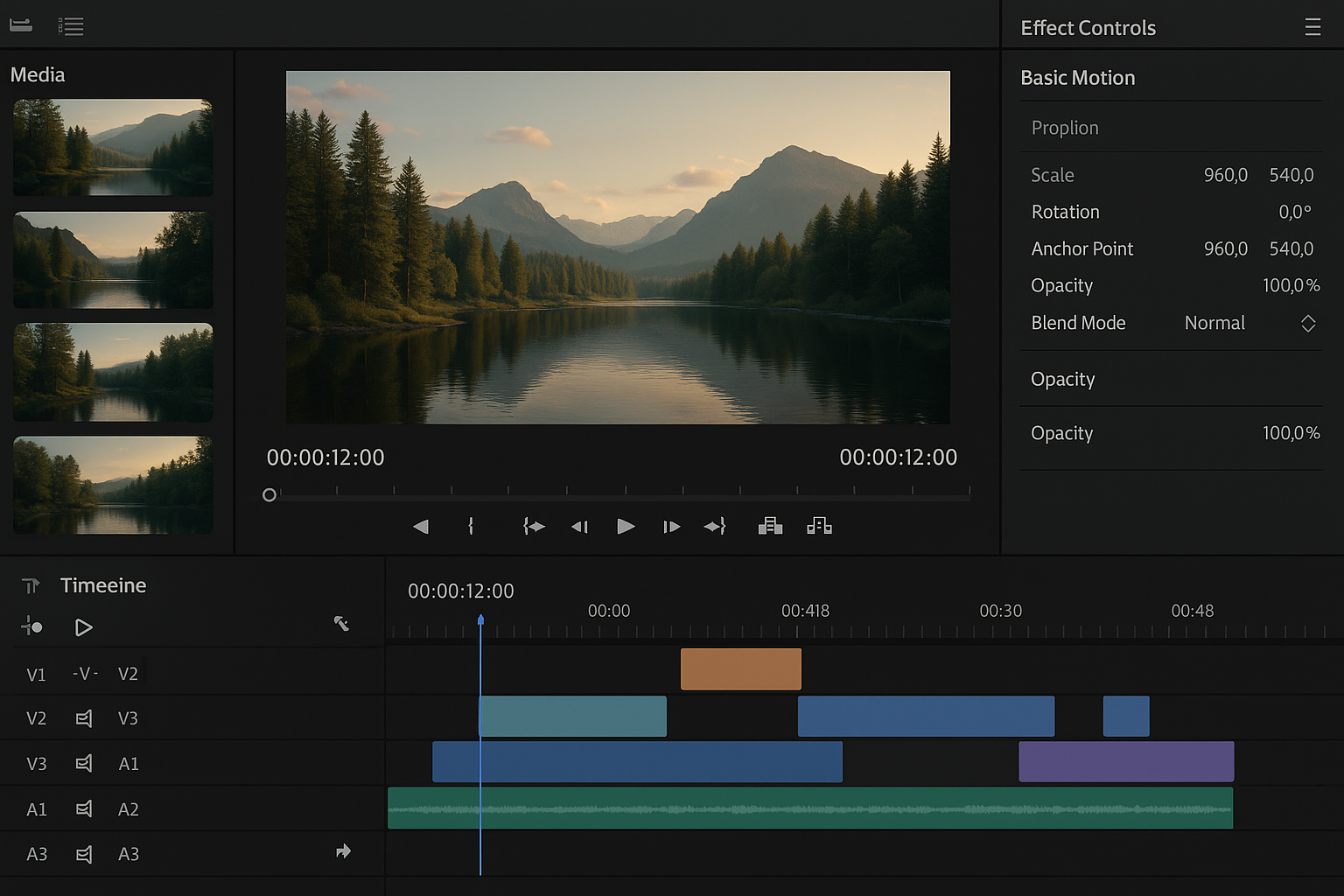
Students learn professional video editing techniques including cutting, transitions, effects, color correction, and sound design. Whether they want to create YouTube videos, short films, or school projects, they'll gain skills used by professional editors in the entertainment industry.
Tech Tails' video editing classes for kids teach the same cutting, pacing, and storytelling skills used by professional editors, through live, 1-on-1 sessions over Zoom. A dedicated instructor works with each student on projects tied to what they actually want to make, whether that's YouTube-style content, a short film, or a school project, using tools like DaVinci Resolve, Adobe Premiere Pro, and CapCut.
Younger students or those newer to editing often start in more approachable apps like iMovie or CapCut, learning basic cuts and transitions before moving into professional software. As students progress, they add color correction, sound design, and titles to their toolkit, learning not just how to use the software but why an edit works, what makes a cut feel right, and how pacing shapes a story.
What You'll Learn
Video cutting & transitions
Color correction
Sound design
Storytelling
Titles & effects
Export & publishing
What they can build
Examples. Every student's path is built around their own interests.
A short YouTube-style video
Plan, film, and edit a short video on a topic of their choice using CapCut or iMovie, learning pacing, cuts, and how to hold a viewer's attention.
A short narrative film
Edit footage into a short story with a beginning, middle, and end in DaVinci Resolve or Premiere Pro, practicing scene structure and transitions.
A color-graded scene
Take raw footage and adjust color, contrast, and mood using DaVinci Resolve's color tools, learning how grading changes the feel of a shot.
A video with custom titles and effects
Add animated titles, captions, and simple effects in Premiere Pro or CapCut, learning how text and motion support a story without distracting from it.
A sound-designed edit
Layer music, sound effects, and dialogue levels in DaVinci Resolve or Premiere Pro, learning how sound shapes emotion and pacing as much as picture does.
A social media highlight reel
Cut a longer piece of footage down into a short, high-energy highlight reel in CapCut or Canva, formatted for platforms like Instagram or YouTube Shorts.
How Your Student Progresses
- 1
Getting started
New students learn the basics of cutting and sequencing footage in approachable tools like CapCut or iMovie, working on short, simple projects like a highlight reel or a one-minute video. The focus is understanding how individual clips combine into a finished piece before adding any advanced techniques.
- 2
Building skills
Students move into more capable software like Adobe Premiere Pro or DaVinci Resolve, adding transitions, titles, and basic color correction to their projects. They start planning edits around a clear story or message rather than simply arranging clips in order, and begin working with longer, more complex footage.
- 3
Going further
Advanced students refine color grading and sound design in DaVinci Resolve, building a more polished final product. At this stage, students often work toward a finished short film, a YouTube series concept, or a portfolio reel, learning to give and receive feedback on their own edits the way professional editors do.
Is this class a good fit?
Video Editing classes are great for kids who:
- already make or want to make their own YouTube videos
- have a good eye for pacing and enjoy fine-tuning details
- want to turn raw footage into a real, finished story
- are interested in film, content creation, or media production
- enjoy technical tools alongside creative decision-making
How Classes Work
Private 1-on-1
Every session is a private lesson between your student and their dedicated instructor. No group classes.
Live on Zoom
Classes happen live over Zoom from the comfort of home. All you need is a computer and internet.
Full 1-Hour Sessions
Each session is a full hour of focused, engaging live instruction.
Weekly Schedule
Pick a weekly time that works for your family. Consistent scheduling builds lasting skills.
Tools & Software
Students work with industry-standard tools used by professionals
Tools vary based on student level and project goals
Video Editing FAQ
What age can my child start video editing classes?
Video editing classes are open to students ages 7 and up. Younger students typically start in simpler tools like iMovie or CapCut, learning basic cuts and transitions, while older students can move into professional software like DaVinci Resolve or Adobe Premiere Pro. The instructor adjusts the starting software and pace to your child's age and experience.
Does my child need their own camera or footage to edit?
Not necessarily. Many early projects use footage the student films on a phone or webcam, or existing clips they're allowed to use, like screen recordings or personal video. The instructor can help plan simple filming setups, but the focus of the class is the editing process itself, not equipment.
What software will my child use?
It depends on their age and project. Free tools like DaVinci Resolve, CapCut, and iMovie cover most of the curriculum at no added cost. Adobe Premiere Pro is introduced for students working on more advanced projects. Your instructor will confirm exactly what to install as your student's curriculum develops.
Can my child edit videos for a YouTube channel or social media in these classes?
Yes. Many students use video editing classes specifically to build content for a YouTube channel or social platforms, learning pacing, titles, and short-form editing techniques in tools like CapCut and Canva alongside longer-form editing in Premiere Pro or DaVinci Resolve. Projects are personalized around whatever the student actually wants to create.
Is video editing a good class for a creative kid who isn't into coding?
Yes. Video editing focuses on storytelling, pacing, and visual decision-making rather than programming, making it a strong option for creative students who prefer hands-on, visual work. It still builds valuable technical skills, like software fluency and attention to detail, without requiring any coding background.
Keep Exploring
Who teaches
- Skyler CameronFull Stack Development Expert
- Evan SternSenior Game Developer
- Austin WeeksUnity & AI Specialist
- Tyler BurgentsGame Development Expert
- Jaycee SalinasGame Developer & AI Specialist
Scholarships
We accept many education scholarships and ESA programs. If you have education funding, we can likely accept it.
Learn MoreReady to Get Started?
Try a full Video Editing class for free. No payment, no obligation.
Claim Your Free Trial Class